Link a Bot
Let your own bot trade one of your wallets without handing it your funds. You add the bot's address in the app, and from then on it can place, cancel and reduce orders for that wallet, and nothing else: it cannot withdraw or send, and every fill settles back to your wallet.
The bot keeps its own key. You never share yours, and the bot pays for its own orders with its own gas.
Give a bot a wallet of its own. The most a bot can lose is what its wallet holds. Link it to a second wallet, such as Wallet 2 or 3, rather than your main trading wallet, and move in only what you want it to trade.
What a linked bot can do
| Linked bot | |
|---|---|
| Place, cancel and reduce orders for the wallet | Yes |
| Withdraw, send or transfer the wallet's funds | No |
| Trade your other wallets | No, access is per wallet |
| Arm take-profit or stop-loss orders on the exchange | No, only the wallet itself can |
Fills, cancels and reduces always pay out to your wallet, never to the bot.
Take-profit and stop-loss. A bot that uses take-profit and stop-loss levels watches the price and closes the position itself, so those levels only act while the bot is running and don't appear in the app's TP/SL column. To have the exchange hold them, set TP/SL on the position in the app.
Before you start
- A Somnia Account wallet. The Legacy Account can't link bots.
- Your bot's address. This is the public address of the key your bot signs with. Make a new key just for the bot (for example with
cast wallet new) and paste only its address. Never paste a private key into the app.
Step 1: Pick the wallet the bot will trade
Open your wallet (top right) and click the wallet name at the top to open the wallet list. Pick the wallet you want the bot to trade. The pencil next to a wallet's address renames it, for example to Bot, so it is easy to tell apart.
No second wallet yet? New wallet adds one to your account. It comes from the same login wallet as the others, so there is nothing to import or back up.
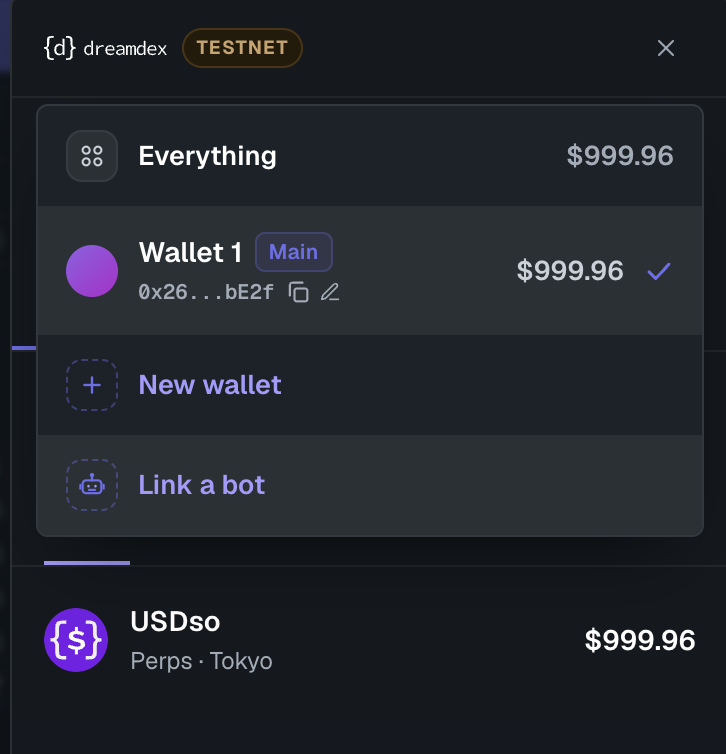
The wallet list: pick a wallet, rename it with the pencil, add one with New wallet, or choose Link a bot.
Step 2: Open Link a bot
With the wallet selected, choose Link a bot at the bottom of the wallet list. You can also get there from Manage > Bot access.
Step 3: Add the bot
On the Link a bot tab:
- Paste the bot's address. The gas the bot already holds shows at the end of the field.
- Choose what it may trade. Perps uses this wallet's perp margin, Spot uses this wallet's tokens. Each choice shows the balance the bot would trade with, and Perps is ticked by default.
- Leave Send it … for gas on to send the bot gas from this wallet as soon as access is granted.
- Press Add bot. The app signs this change with its own key, so there is no wallet prompt.
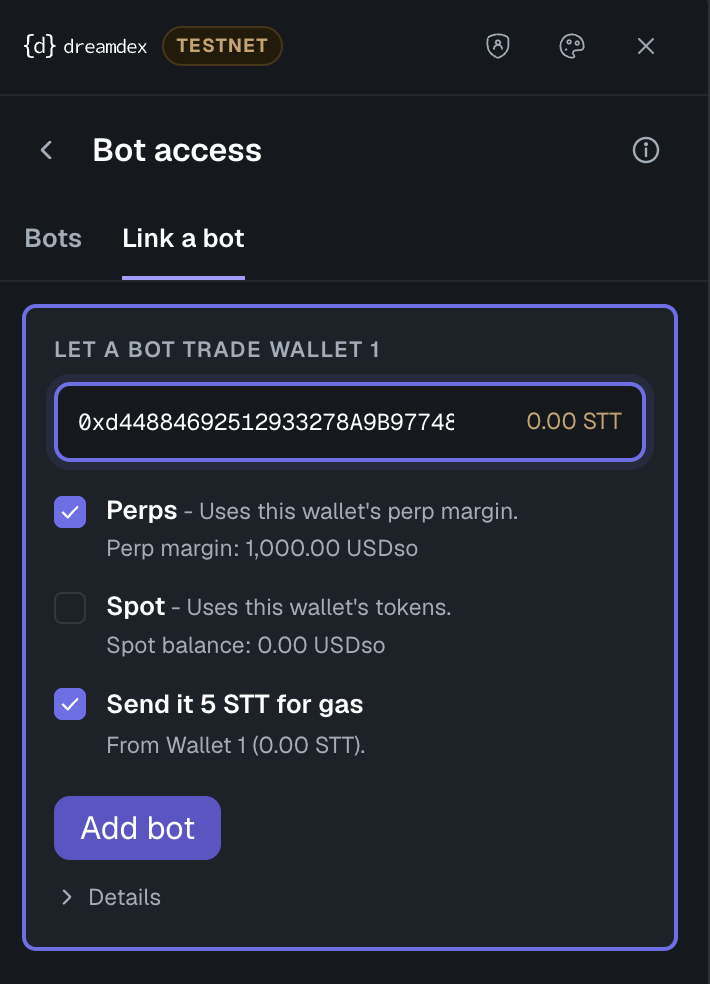
Paste the bot's address, pick Perps or Spot, and press Add bot.
Access granted appears next to the button once the bot is linked.
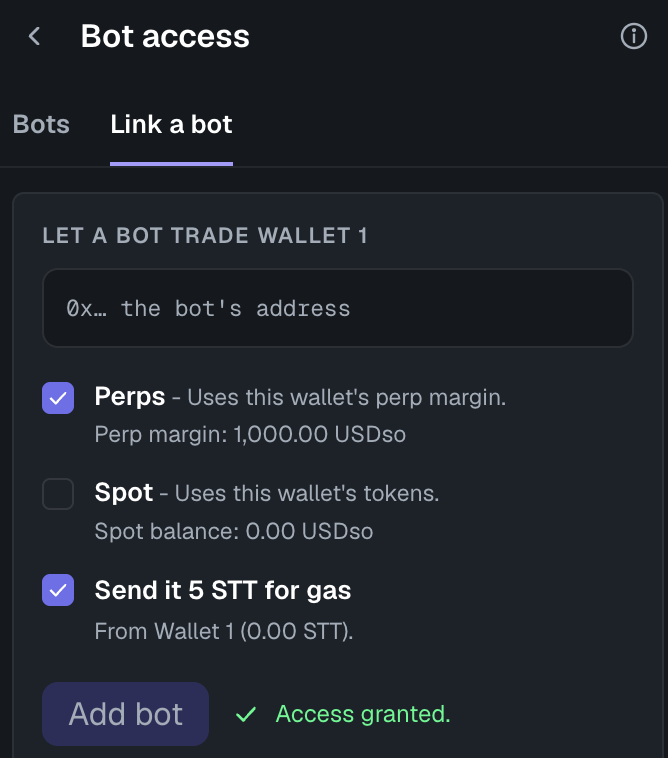
The bot is linked.
Perps access is granted market by market, so a perps market listed later needs the same bot added again.
Spot access is one grant that covers every official spot market, including ones listed later. The app also gives each spot market a standing token approval from this wallet, because that is what the bot's orders draw on. A spot market listed later, or a spot order you place yourself (which replaces that approval), can mean adding the same bot again.
Spot access doesn't cover selling the wallet's SOMI (STT on testnet): Link a bot approves tokens, not the network's own coin.
Step 4: Check the bot and top up its gas
The Bots tab lists every bot that can trade this wallet, with what it may trade and how much gas it holds. If the gas runs low, press Top up on the bot's row, enter an amount and send it (Send STT on testnet).
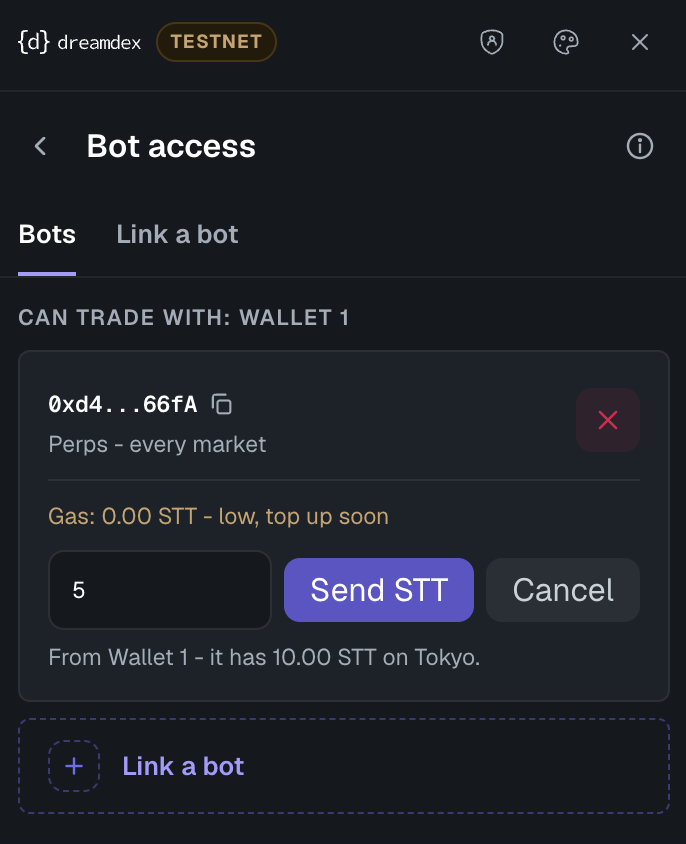
A bot low on gas, topping it up from the wallet.
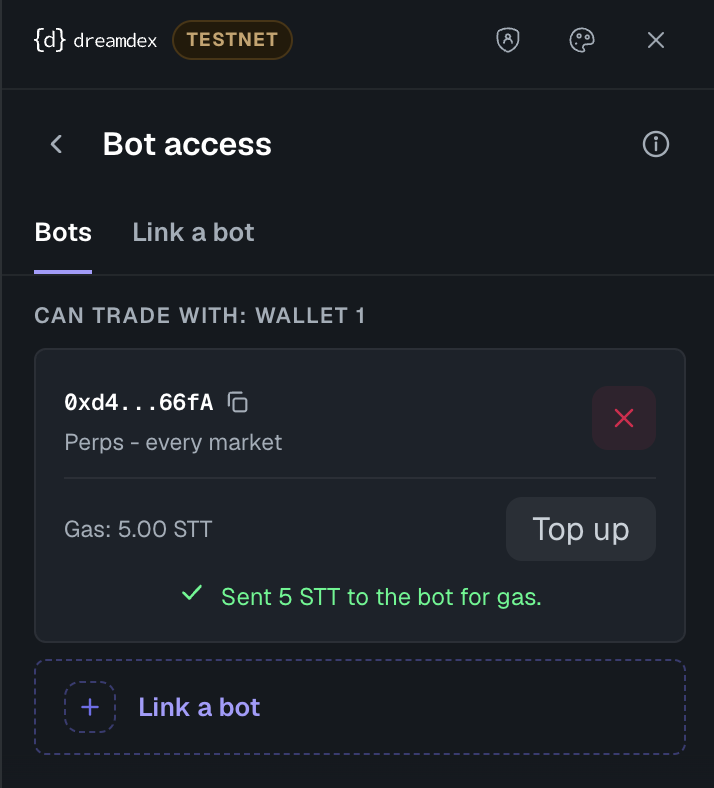
The bot, ready to trade.
Remove a bot
On the Bots tab, press the red X on the bot's row and confirm Remove access. Removal takes effect straight away. Orders the bot already placed stay on the book until they fill or are cancelled.
The standing spot token approvals stay in place after a removal. A market only takes tokens for an order you or a still-linked bot placed, so a removed bot can't use them.
Run your bot against the wallet
Your bot signs with its own key and places orders for your wallet through the placeOrderFor, cancelOrderFor and reduceOrderFor functions. Operators & Session Keys covers the contract side.
The open-source dreamDEX bot kit works this way when OWNER_ADDRESS is set to the wallet you linked.